

Blue and White Arrows After Update | Community
Skip to main content
Newcomer
April 19, 2024
Solved

Blue and White Arrows After Update

  • April 19, 2024
  • 12 replies
  • 19 views

I'm sorry if this isn't the correct area, but I could use some advice.

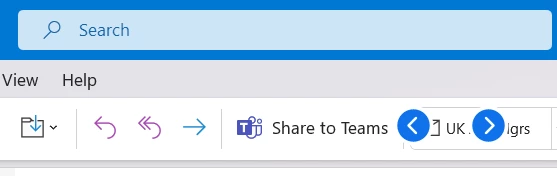
I've just updated to Zoom Workplace, and now have two blue and white arrows that are on top of any app. They are definitely Zoom related, as when I close the app they disappear, and then reappear when I open it.


I've tried hovering over them but there is nothing. They don't click. Nothing seems to work. I've had a look through all of the settings I can think of, but can't find out what this feature is, or how to turn it off. Would anyone have an idea?


Best answer by ZoomZoom

 Hi, guys.


The version 6.0.10 that  @CarlaA mentioned is out now. Please be sure to update or install it and retest. 

How to update:

If you already have the Zoom desktop client installed, check for updates:

  1. Sign in to Zoom desktop client.
  2. Click your profile picture then click Check for Updates.
If there is a newer version, Zoom will download and install it.


Alternatively, you can download and install the Zoom Workplace desktop app from here: https://zoom.us/download


12 replies

Newcomer
May 16, 2024

In the meantime, this might be worth trying if you are still encountering this issue. 


What worked for me on Windows 11 was to "Repair" the Zoom Workplace desktop app. I tried this a few days ago and so far, the arrows have not returned.

  1. Open Control Panel > Programs > Programs and Features.
  2. Select Zoom Workplace from the list of installed apps so it's highlighted, right-click on it, and click "Repair."
  3. Wait a couple of minutes for the repair process to complete. 
  4. Open the Zoom Workplace app and hopefully, those blue arrows will be gone!
Newcomer
May 16, 2024

@VicLoI appreciate your optimism, but I would put money on this happening again. We have attempted this fix and it seems to fix it, but returns after a few days. We've also seen the issue not appear for a few days randomly and then it does again just when you think it's "fixed". I don't believe this will be fixed until the next release. I am curious when that release is coming since there isn't anything on Zoom's release notes page yet. Hopefully not too much longer as our users are getting annoyed by this.

ZoomZoomAnswer
Community Champion | Employee
May 21, 2024

 Hi, guys.


The version 6.0.10 that  @CarlaA mentioned is out now. Please be sure to update or install it and retest. 

How to update:

If you already have the Zoom desktop client installed, check for updates:

  1. Sign in to Zoom desktop client.
  2. Click your profile picture then click Check for Updates.
If there is a newer version, Zoom will download and install it.


Alternatively, you can download and install the Zoom Workplace desktop app from here: https://zoom.us/download


Newcomer
May 21, 2024

I am not seeing an "Accept as Solution" button, but this new version does seem to correct the issue.