


My Experience with Zoom’s Auto-Call Feature: A Game-Changer for Busy Days
As someone who often jumps between multiple meetings, some scheduled, some totally ad hoc, I’ve always struggled with one thing: making sure I never miss the start of any meeting. Between managing calendar alerts, emails, and just the chaos of the day, it’s easy to lose track and join late.
That’s why I was really excited when I discovered Zoom’s Auto-Call feature.
How It Works For Me?
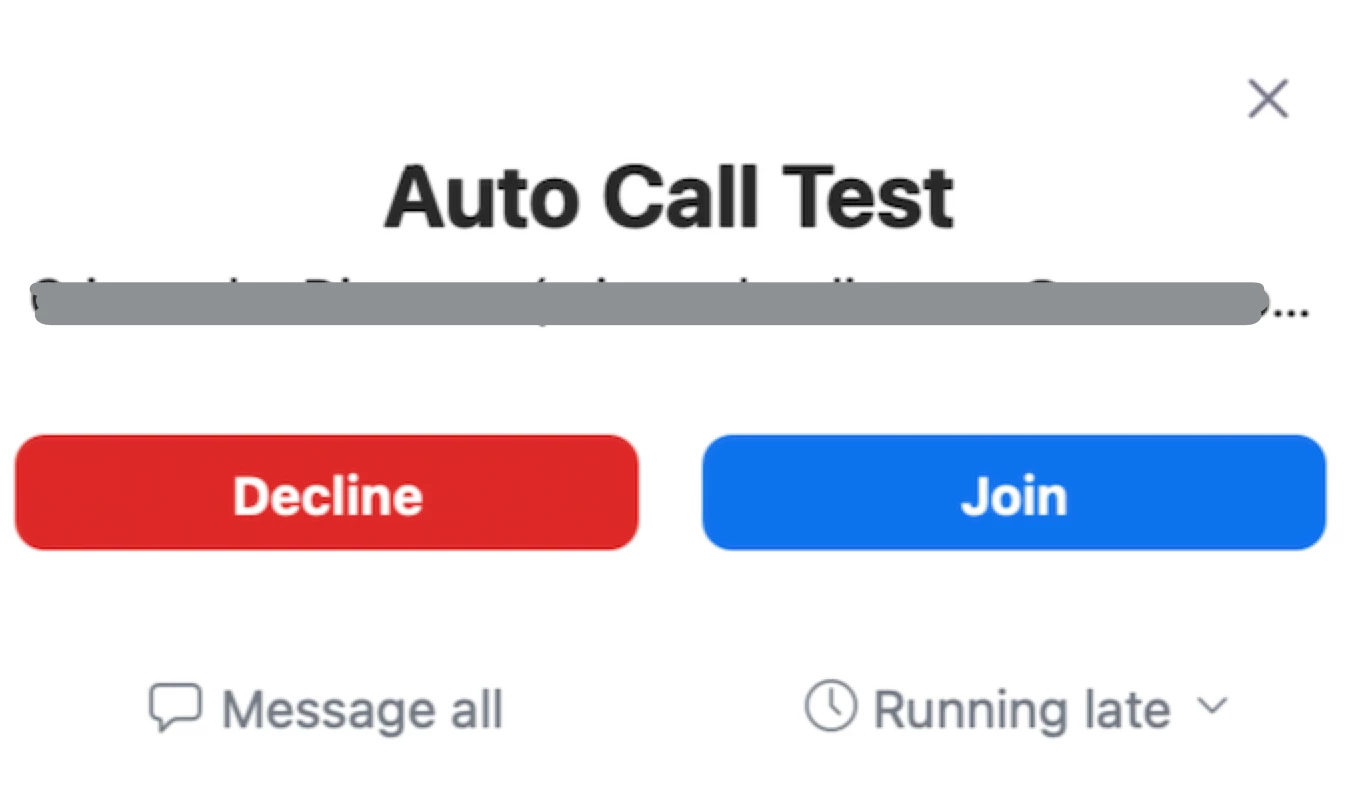
Once I enabled Auto-Call in my Zoom desktop app’s settings, I no longer had to worry about manually clicking the “Join” button or scrambling to find the meeting link. Instead, when a meeting I’m scheduled to attend starts, Zoom automatically calls me, and I get a prompt on my screen with options to Join or Decline the meeting.
If I’m ready, I simply tap Join and jump right in. If I’m tied up or running late, I can tap Decline — and a message will appear reminding me that if I’m running late, I can join the meeting anytime by clicking the invite link later.
What I Love Most?
-
It’s effortless: I don’t have to remember to click “Join” at the exact time.
-
The clear Join or Decline options let me decide in the moment if I can attend or need to catch up later.
-
The helpful reminder message about joining later if I’m running late is reassuring.
-
It works great for ad hoc meetings too — if I’m on the invite list and the meeting starts, Zoom calls me automatically.
-
No more missed or delayed starts means more productive conversations.
How To Get Started?
If you’re like me and handle multiple meetings a day, I highly recommend trying out Auto-Call. Here’s how to enable it:
-
Open the Zoom desktop app and click your profile picture.
-
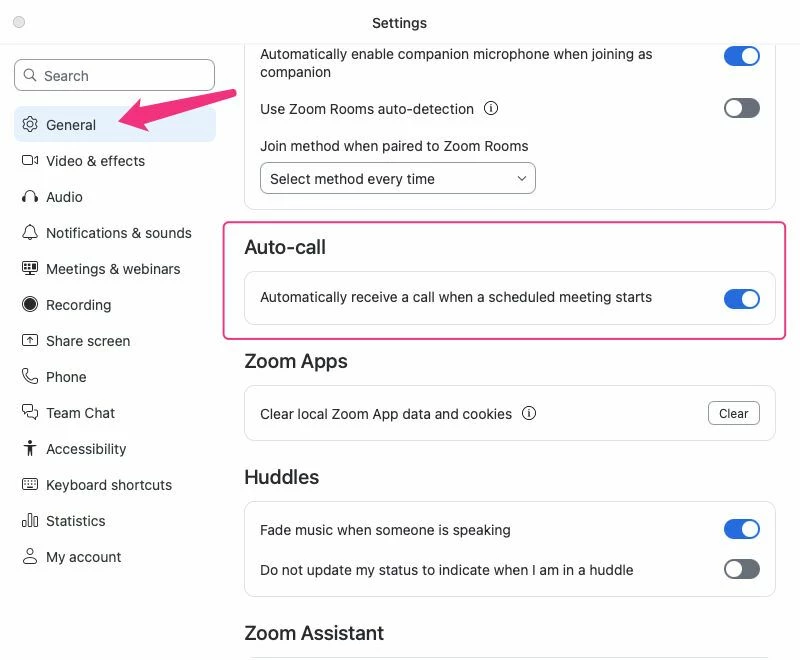
Go to Settings > General.
-
Under the Auto-call section, toggle on “Automatically receive a call when a scheduled meeting starts.”
- Or, on your desktop client, go to General > Auto-Call (see image below).
Give it a shot — it’s a small change with a big impact on staying connected and on time!