
Chat Settings | Community
Skip to main content
Explorer
April 6, 2022
Solved

Chat Settings

  • April 6, 2022
  • 2 replies
  • 15 views

Hello, I want to turn off the chat save option for attendees.  At the same time, I want to be able to save the chat for the host for reference after the event.  Can this be done?  If so, would  you assist and thanks. Kathy

    Best answer by zac2021

    Hello @Kathy01 , Thank you for sharing a snapshot of your settings. Would you kindly try the settings as shown on the snapshot:
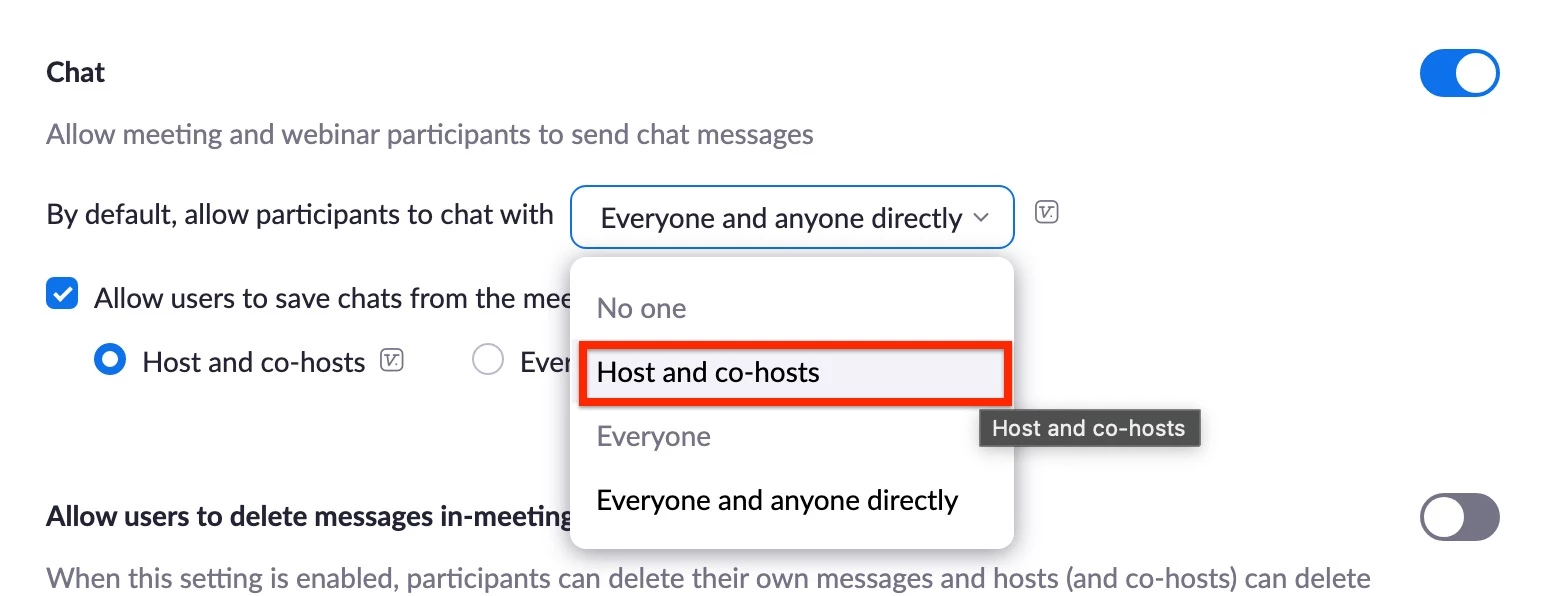
     

    Cheers

    2 replies

    Community Champion | Employee
    April 6, 2022

    @Kathy01 Both can be done.


    To enable or disable Chat for your own use:

    1. Sign in to the Zoom web portal.
    2. In the navigation panel, click Settings.
    3. Click the Meeting tab.
    4. Under In Meeting (Basic), click the Chat toggle to enable or disable it. If you disable Chat, the Private chat and Auto saving chats features will also be disabled.
      Note:
      • If the option is grayed out, it has been locked at the account level and needs to be changed at that level.
      • You may see separate settings for Meeting chat and Webinar chat if your admin requested this to be enabled by Zoom.
    5. If a verification dialog appears, click Turn On or Turn Off to verify the change.
    6. (Optional) Change these setting for chat permissions, then click Save:
      Note: These settings only work properly if the host is on client version 5.7.3 and above.
      • Allow participants to chat with: Specify who meeting participants and webinar panelists can chat with using in-meeting or in-webinar chat. 
      • Allow users to save chats from the meeting: Enable or disable the ability to save the chat transcript for Hosts and co-hosts or Everyone.


    Saving in-meeting chat: You can save meeting chats either or both locally on your desktop/to the cloud. Please see detailed instructions here.


    _______________________________________________________
    If my reply helped, don't forget to click the accept as solution button! ⤵️


    Kathy01Author
    Explorer
    April 7, 2022

    Hello,  Just a quick note to thank you for all the details regarding the options I need for chat.  I really appreciate it!  Kathy

    Community Champion | Employee
    April 7, 2022

    Hello @Kathy01,


    You're much welcome and thank you for asking the Zoom Community.


    Happy to help.


    zac

    Newcomer
    April 8, 2022

    Hola😍